How to set up a GCS Bucket for file uploads
Google Cloud Storage buckets can be a useful upload destination for receiving files from Velociraptor clients or collection containers from offline collectors in scenarios where the source system is internet connected and you do not want to stand up storage services on the local network.
This is made possible by the upload_s3 VQL function.
Prior to release 0.76, Velociraptor had a dedicated upload_gcs plugin, however after this release that plugin was removed since it increased the binary size significantly. Google provides an AWS compatibility mode which allows us to use the upload_s3 function instead.
This article explains how to set up a GCS bucket with appropriate security for file uploads.
Setup steps
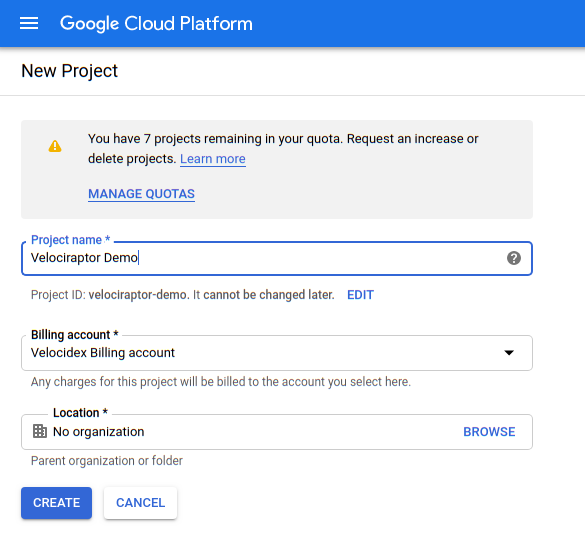
- Before we can upload files to a bucket we need to have a project in place.
For this example I will created a new project called
velociraptor-demo:
Our plan is to distribute to our accomplices the packed binary as before, but this time we want Velociraptor to automatically upload results for us into our bucket.
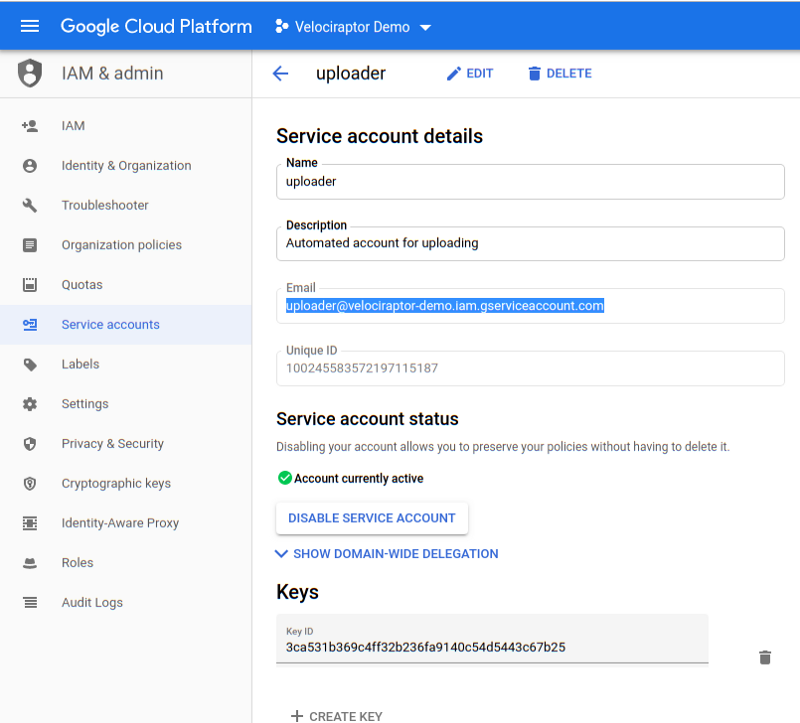
- In order to do this we need a service account with credentials allowing it to upload to our bucket. Go to IAM & Admin / Service Accounts / Create Service Account:
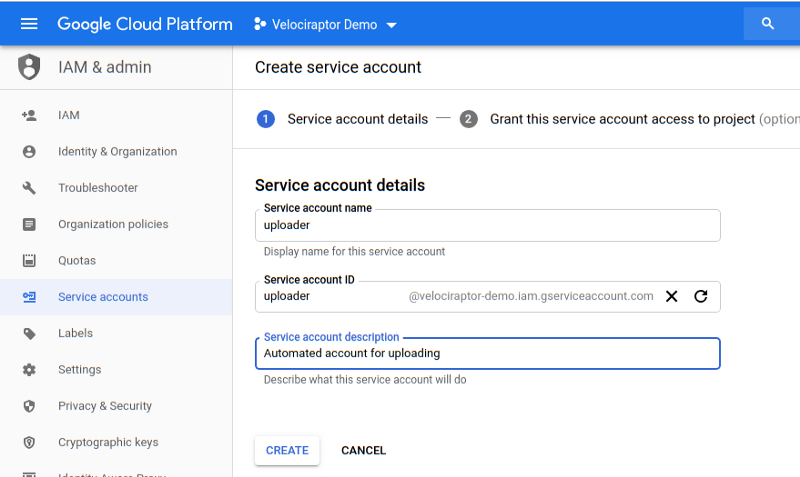
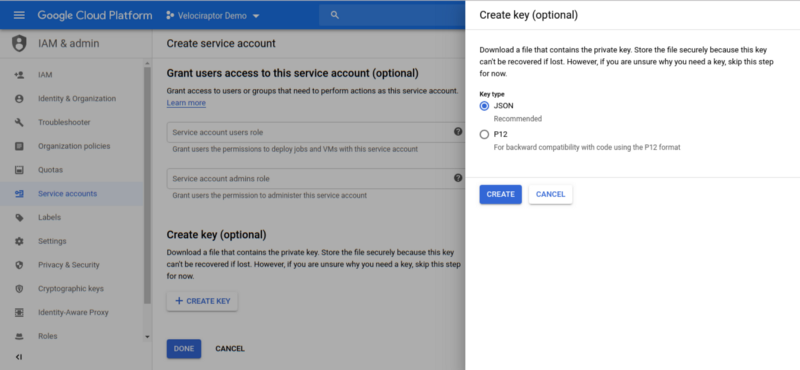
- Since the service account will be able to upload by itself (i.e. the user does not authenticate on its behalf), we need to identify it with a JSON key. The key allows Velociraptor to act as the service account on this cloud project. Clicking the Create button will download a JSON file to your system with the private key in it.
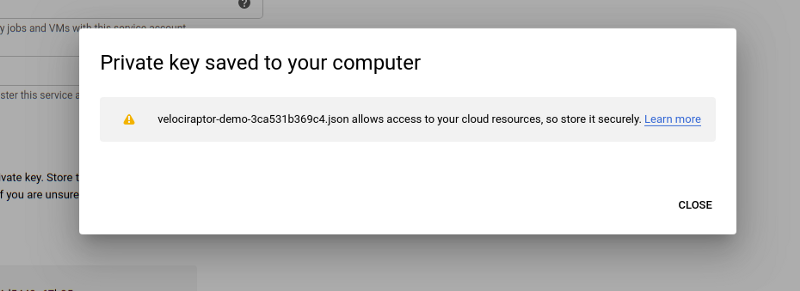
Note the service account’s email address. Currently this account has no permissions at all, but we will allow it to write objects into our upload bucket later.
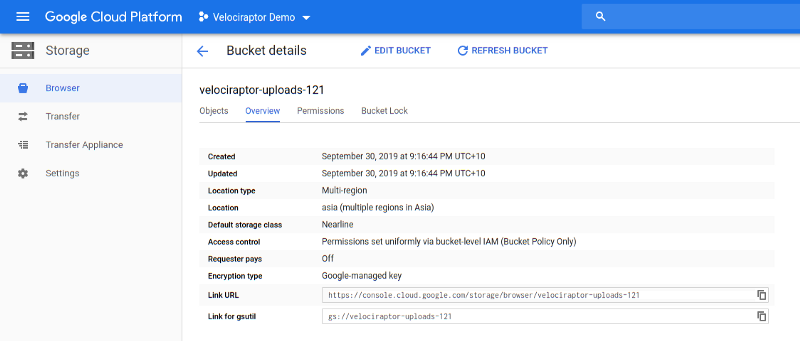
- Next we create a bucket to store our collected zip files I will call it
velociraptor-uploads-121:
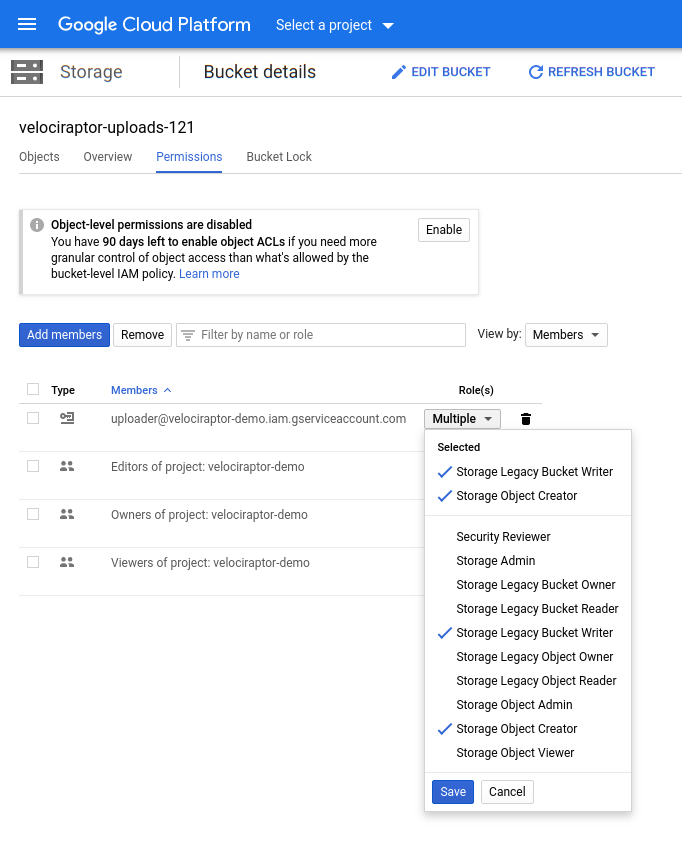
- Selecting the Permissions tab, we are able to add the service account as a member — we will only give it the ability to write on a bucket and create new objects. This is important since is means that the service account is unable to read or list objects in this bucket. Since we will embed the service account key in our config file we need to make sure it can not be misused to compromise collections from other machines.
- Setting up service account HMAC keys. This provides the GCP S3 compatibility layer. These keys allow the caller to log into the service account. Note that the keys only provide the same permissions that the service account has above - they are simply an alternative way of logging in.
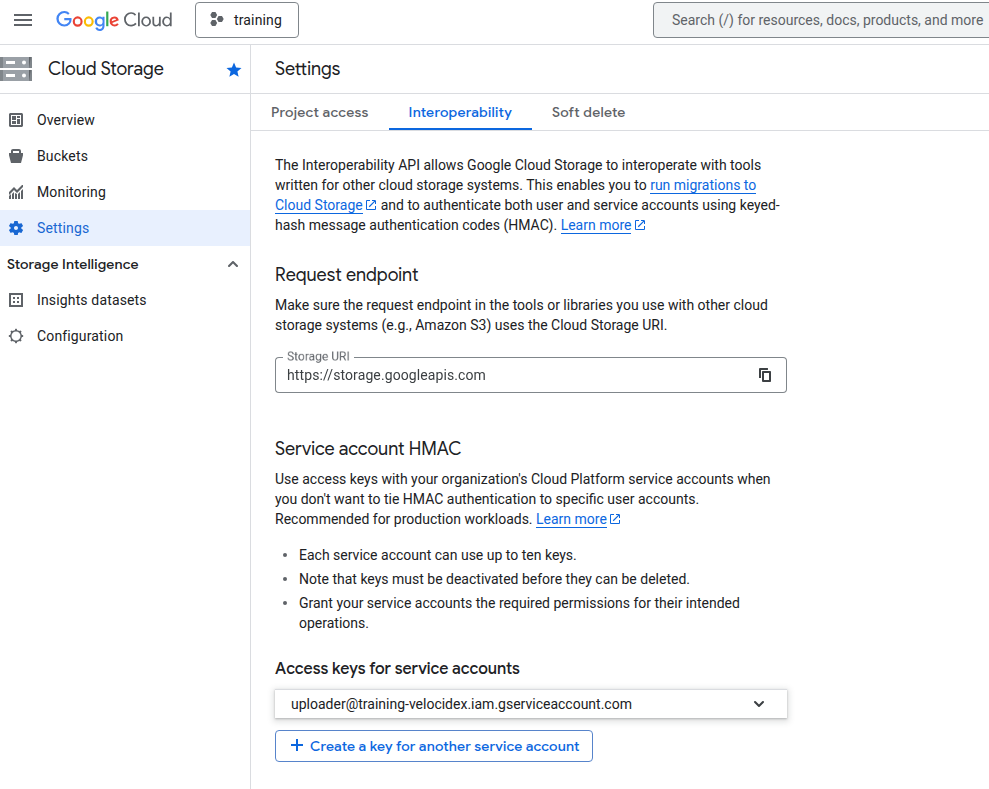
Select Settings -> Interoperability -> Access keys for service accounts
Use these keys as parameters for the upload_s3() plugin:
- endpoint=“https://storage.googleapis.com”
- credentials_key=“HMAC KEY”,
- credentials_secret=“HMAC KEY SECRET”,